Connect Claude to your page
Four steps, once. We recommend Claude Code— it is free with your Claude plan, and unlike the chat it can reach your files, so it can upload photos and do the whole job. After that you build and change your page by asking for things in your own words.
- 01
Create your page first
Claude edits a page that already exists — it cannot create one, because a new page is a new subscription. Start yours at briopage.com/start, then come back here. - 02
Get your connection address
In your dashboard, open Connect Claude and press Create a key. You get one address that looks like this:https://mcp.briopage.com/mcp/bp_live_…Copy it now — it is only shown once. It covers every page on your account. - 03
Open Claude Code and connect it
Claude Code comes with the Claude desktop app — open it and click the </> tab at the top. Then run this once, pasting your own address at the end:claude mcp add --transport http briopage <your address>Restart Claude Code, then ask “which pages can I edit?” — if it answers with your page, you are connected.⚠️ The regular chat can connect too, under Settings → Connectors → Add custom connector. It edits your page fine, but it cannot read files from your computer, so photos have to go through the dashboard. - 04
Install the skill (recommended)
The skill teaches Claude how BrioPage works — which tool does what, in what order, and the mistakes to avoid. Without it a fresh conversation starts blind and wastes attempts figuring things out.Download the skillThen in Claude: Customize → Skills → Add → Upload skill.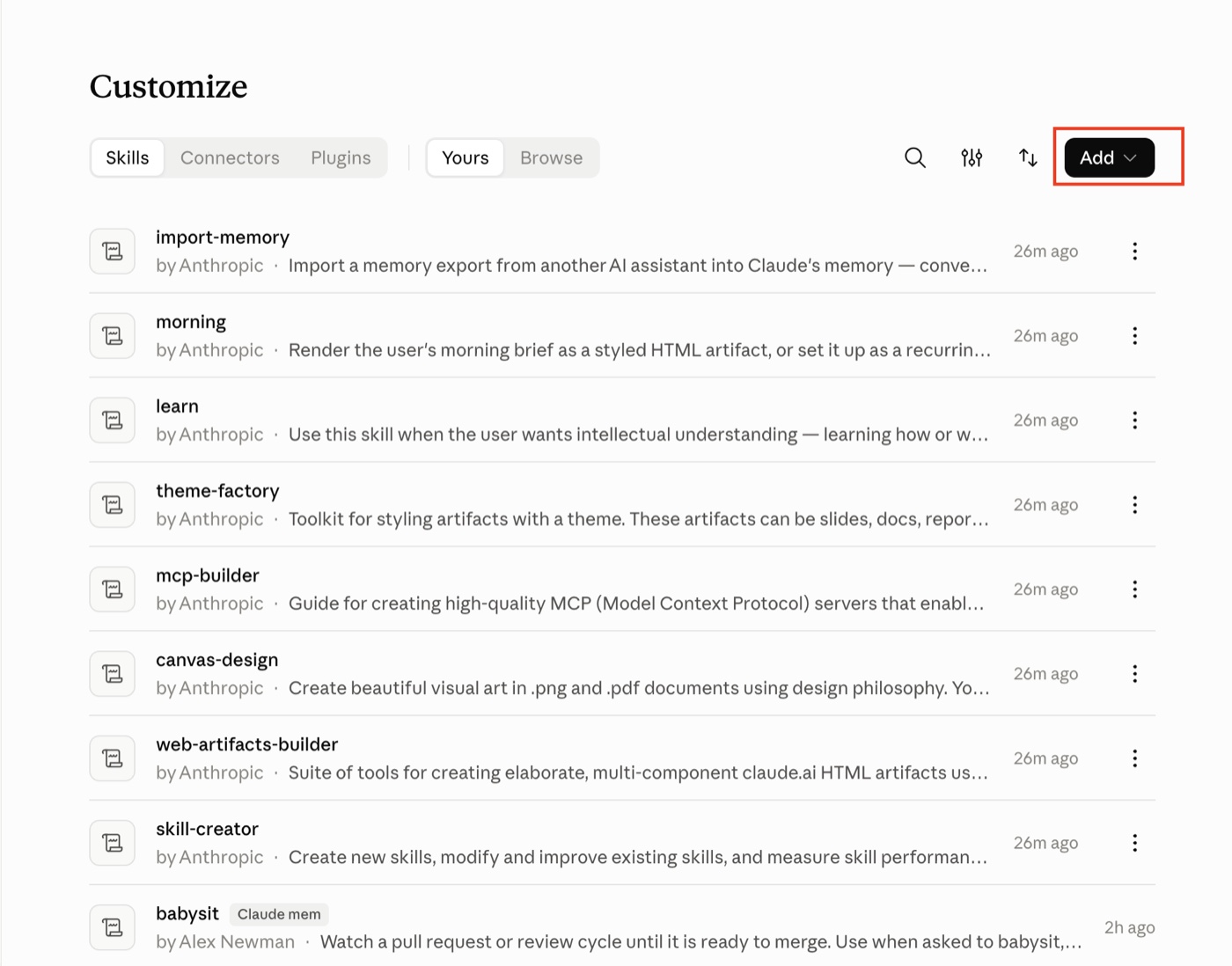 Drag the file you downloaded onto the box, or browse for it, and press Save. Keep it zipped — that is the format it expects. Claude runs a security scan on save, which is normal and takes a moment.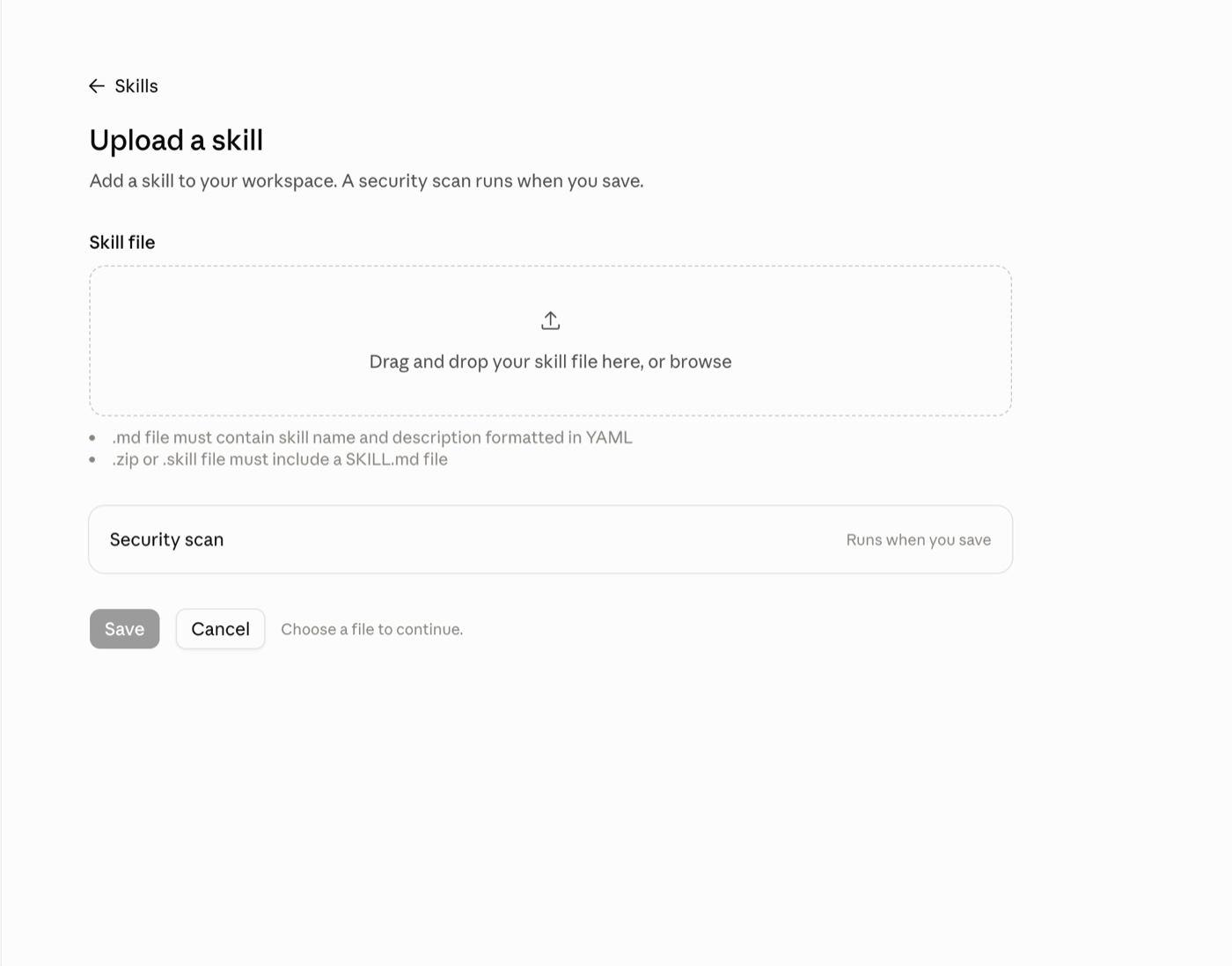
Building a page, in order
Copy these one at a time. They work top to bottom, and you can stop wherever your page already looks right.
- 01
“Which pages can I edit?”
Always start here. It confirms the connection and tells Claude which page to work on.
- 02
“Read my page and tell me what is missing.”
A review before you change anything — empty sections, no prices, no search description.
- 03
“Set the business name, the headline and the about text.”
Your identity, in your own words. Give it a sentence about what you do and who for.
- 04
“Switch to the editorial template with a darker theme.”
Templates, colours, fonts and button shapes. Ask to see another if you do not like it.
- 05
“Add my services with prices: …”
List them the way you would say them out loud. Prices, durations, and what each includes.
- 06
“Set my opening hours: Mon–Fri 9 to 6, Sat 10 to 2, closed Sunday.”
Plain language is fine. Days you leave out show as closed.
- 07
“Upload the photos in this folder to my gallery: …”
Claude Code only — it reads the files itself. In the chat, upload them from the dashboard instead.
- 08
“Show my services and gallery, hide testimonials for now.”
Turn sections on and off, and move them up or down the page.
- 09
“Add a section with our three packages in three columns.”
Claude writes the HTML — cards, tables, price grids — and BrioPage publishes it in your theme.
- 10
“Put my YouTube video on the page so it plays there.”
A video block visitors open on the page itself, without leaving for YouTube.
- 11
“Write my Google title and description.”
The snippet people see in search results. Left empty, Google invents one.
- 12
“Read the whole page back to me so I can check it.”
Last step. Read it as a customer would, then fix whatever reads wrong.
One thing worth knowing
When you add to a list — a service, an FAQ, a link — say “add this and keep the others”. Claude reads the list first and sends it back complete, and being explicit removes any doubt. After a change, ask it to read the section back to you.
Claude writes these for you
You describe the section; Claude writes the HTML and BrioPage publishes it in your theme, with your colours and your spacing. You never touch code.
A price table
“Add a section with our three packages, what each includes, and the price.”
Two columns with a photo
“Add a section about the workshop, with one of my gallery photos on the left.”
A photo grid
“Show six of my photos in a grid that opens full-screen when tapped.”
A video block
“Put my YouTube video on the page, with a heading and a short line under it.”
A step-by-step
“Explain how the service works in three numbered steps.”
A team section
“Add the team with their photos, names and what each one does.”
The limits, on purpose
Your key changes page content — text, design, services, hours, photos, sections and your shop. It cannot delete your page, cancel your subscription, change your password or add anyone to your account. Those stay in the dashboard, behind your own login.
Photos are where Claude Code earns its place: point it at a folder and it uploads them for you. In the regular chat that is not possible — it cannot read your files — so there you upload from the dashboard, which takes seconds anyway. Either way, once a photo is in your gallery Claude places it wherever you want.
You can revoke the connection at any time from the same screen you created it on, and Claude loses access immediately.